/
Solutions
/
Run & Transform
/
Business Central

Automate the Work Between
Your Systems
Free Your Teams for What Matters

Your most time-consuming tasks are the routine handoffs, approvals, and notifications between disconnected systems. Power Automate connects your Microsoft and third-party systems to automate these workflows end-to-end.
Download and try Power Automate.
Learn More >
See which processes deliver the fastest ROI.
Learn More >
Identify your highest-impact automation opportunities.
Learn More >
Where Power Automate Delivers Immediate Value

The highest-impact opportunities are high-frequency, rule-based processes handled through email, manual data entry, and system switching. Power Automate addresses exactly these workflows.
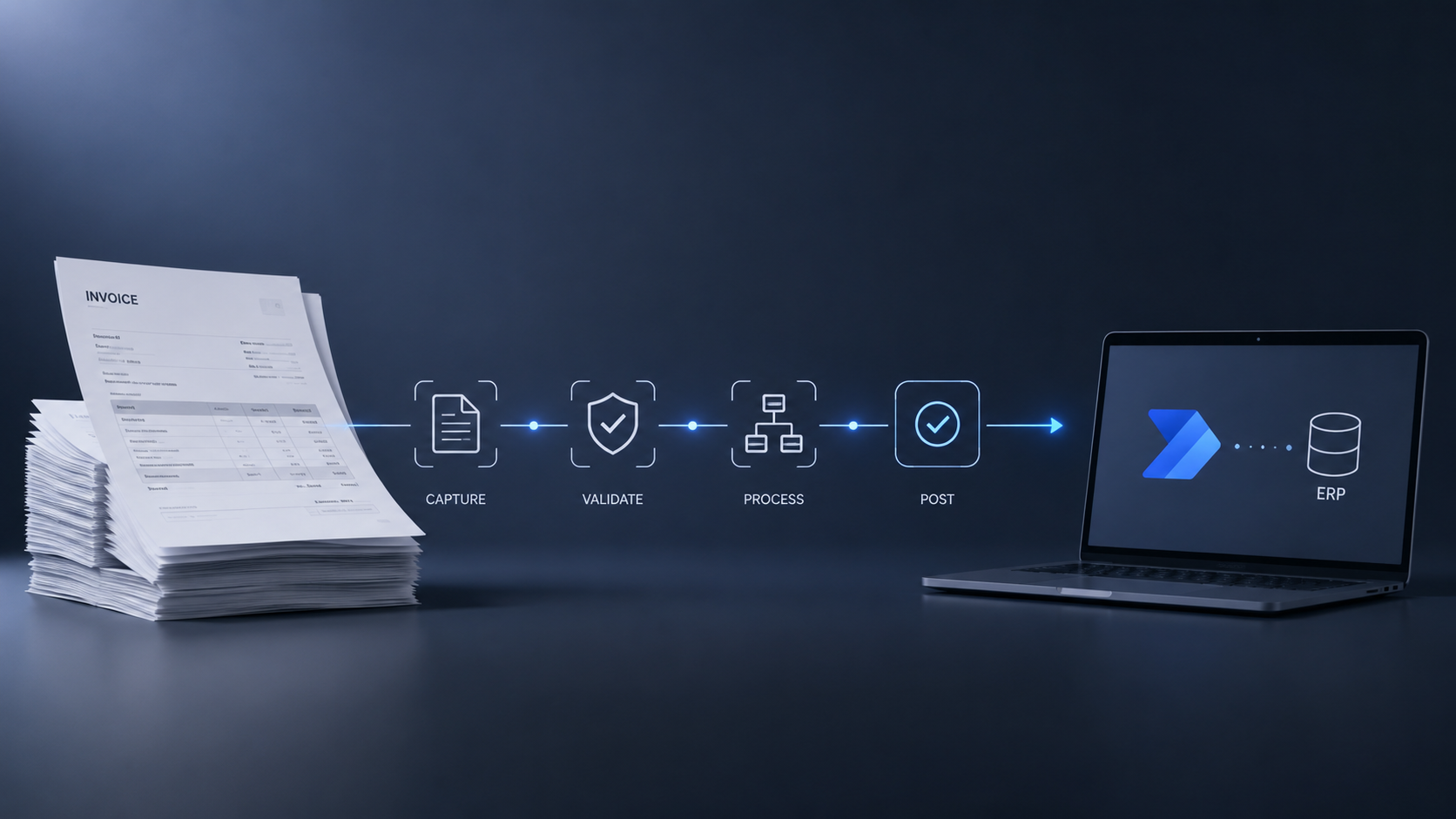
Stack of invoices on the left connected by a flowchart to a laptop on the right, illustrating document automation steps: Capture, Validate, Process, Post, and integration with ERP system.
Document Automation

Automate invoices, delivery notes, and purchase orders, from capture through validation to ERP posting. Pairs with AI-OCR.

Laptop screen displaying a workflow diagram with a start icon and user icons connected by arrows and decision points including check marks, clock symbols, and a red X, extending to four portraits of people with colored status icons: two with green check marks, one with an orange clock, and one with a red exclamation mark, indicating stages of approval or task completion.
Approval Workflows

Replace multi-day email chains with workflows that route requests, send reminders, escalate overdue items, and log decisions.

A central icon connected by glowing lines to four icons representing Microsoft Dynamics 365, SharePoint, Excel, and a database, with two computer screens showing charts and data in a dark modern workspace.
ERP Data Synchronization

Keep data consistent across Dynamics 365, SharePoint, Excel, and third-party systems, synchronized by events, schedules, or changes.

Smartphone on a table with a glowing notification bell icon above it showing one alert, connected by dotted lines to circular profile images of three diverse individuals using their phones.
Notifications & Alerts

Send proactive alerts when specific conditions occur: low inventory, overdue payments, approaching deadlines, or approvals requiring action.

Digital flowchart showing a process linking four business professionals via icons representing user, document, approval, chat, and company, set against a dark office background with a notebook, pen, coffee cup, and laptop on the table.
Customer & Vendor Workflows

Automate onboarding, request handling, status updates, and communication for customers and vendors, improving response and coordination.

REAL-WORLD EXAMPLE, AI-OCR + POWER AUTOMATE
Delivery Note Automation
‍
A Complete Workflow
One of Tectura's most impactful implementations combines AI-OCR with Power Automate to streamline delivery note processing for logistics operations. The result is a seamless, end-to-end process that replaces manual effort and significantly reduces the need for dedicated processing resources.
Capture
Delivery Note

Drivers or back-office staff capture delivery notes by phone or scan.

AI-OCR
Extraction

Power Automate triggers Azure AI Document Intelligence to extract the relevant data.

ERP Data
Validation

Extracted data is validated against ERP records.

Exception
Handling

Exceptions are routed for review with all key details.
Automatic
ERP Posting

Confirmed records are posted to the ERP with a single confirmation.

How Power Automate Works

From triggers to actions, Power Automate connects your apps and data to automate work and drive results.
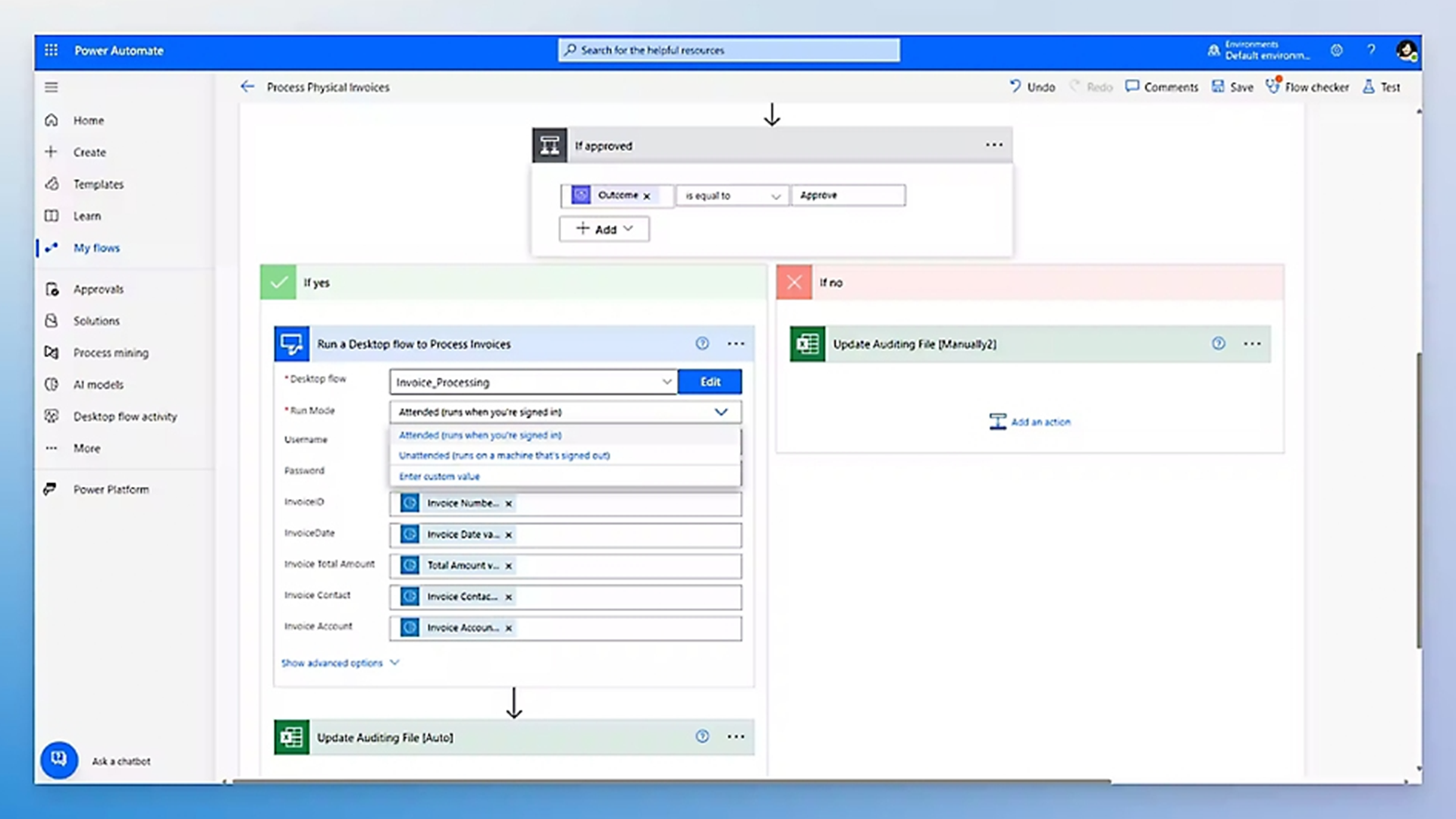
Power Automate interface showing a flow named Process Physical Invoices with a conditional step 'If approved'. If yes, it runs a desktop flow named Invoice_Processing with options for run mode including attended and unattended, and fields for invoice details. If no, it updates an auditing file manually in Excel. The sidebar includes options like Home, Create, Templates, Learn, My flows, Approvals, Solutions, Process mining, AI models, Desktop flow activity, and Power Platform.
Cloud & Desktop Flows

Automate processes between web services using APIs. Or handle legacy systems with Robotic Process Automation (RPA).
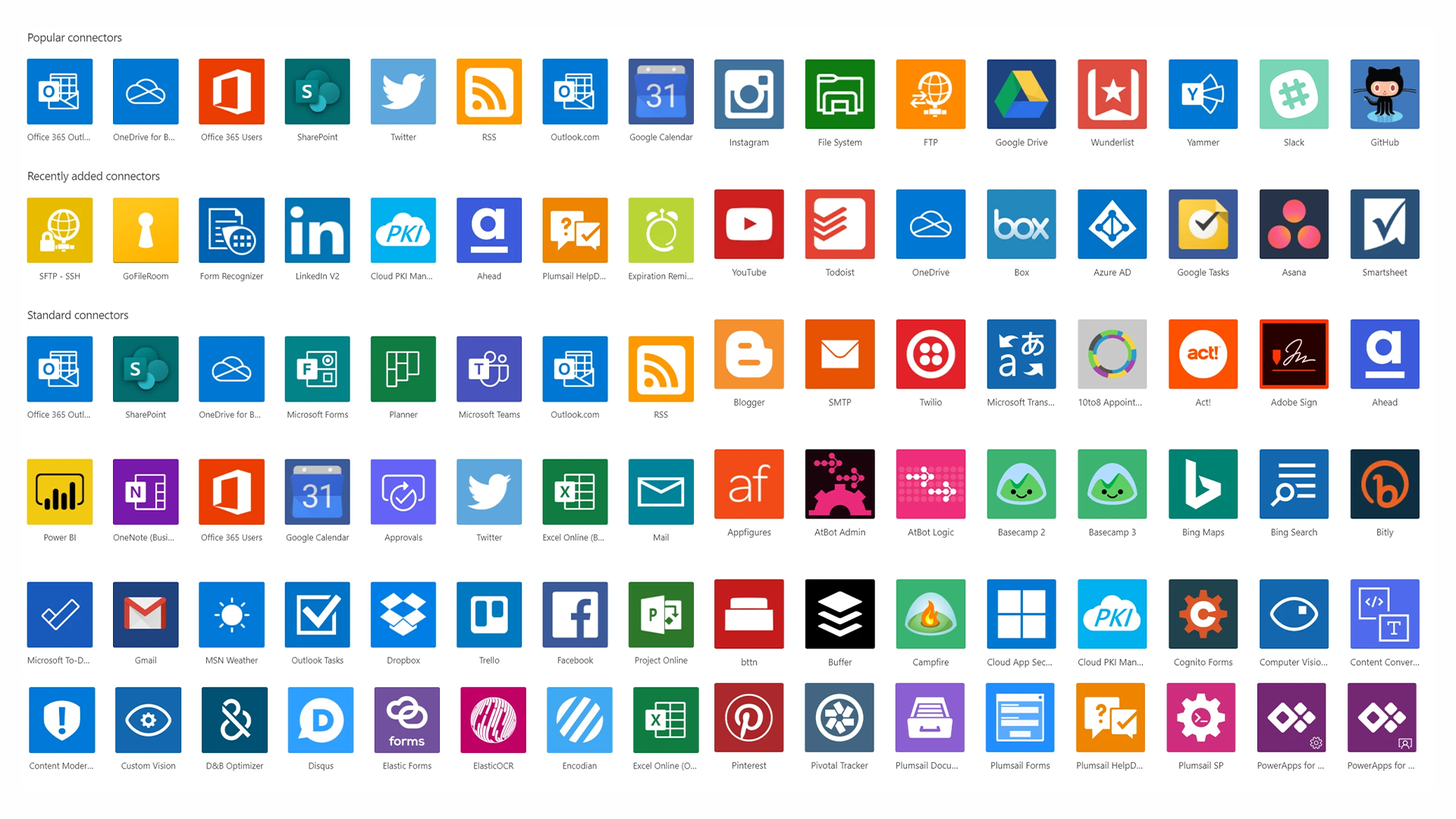
Grid of colorful square app icons representing popular, recently added, and standard connectors, including Office 365 Outlook, OneDrive, Office 365 Users, SharePoint, Twitter, RSS, Google Calendar, Instagram, YouTube, Todoist, Box, Microsoft Teams, Power BI, Gmail, Dropbox, Facebook, Pinterest, and others.
Thousands of Connectors

Pre-built connectors with no custom integration code required for most scenarios.
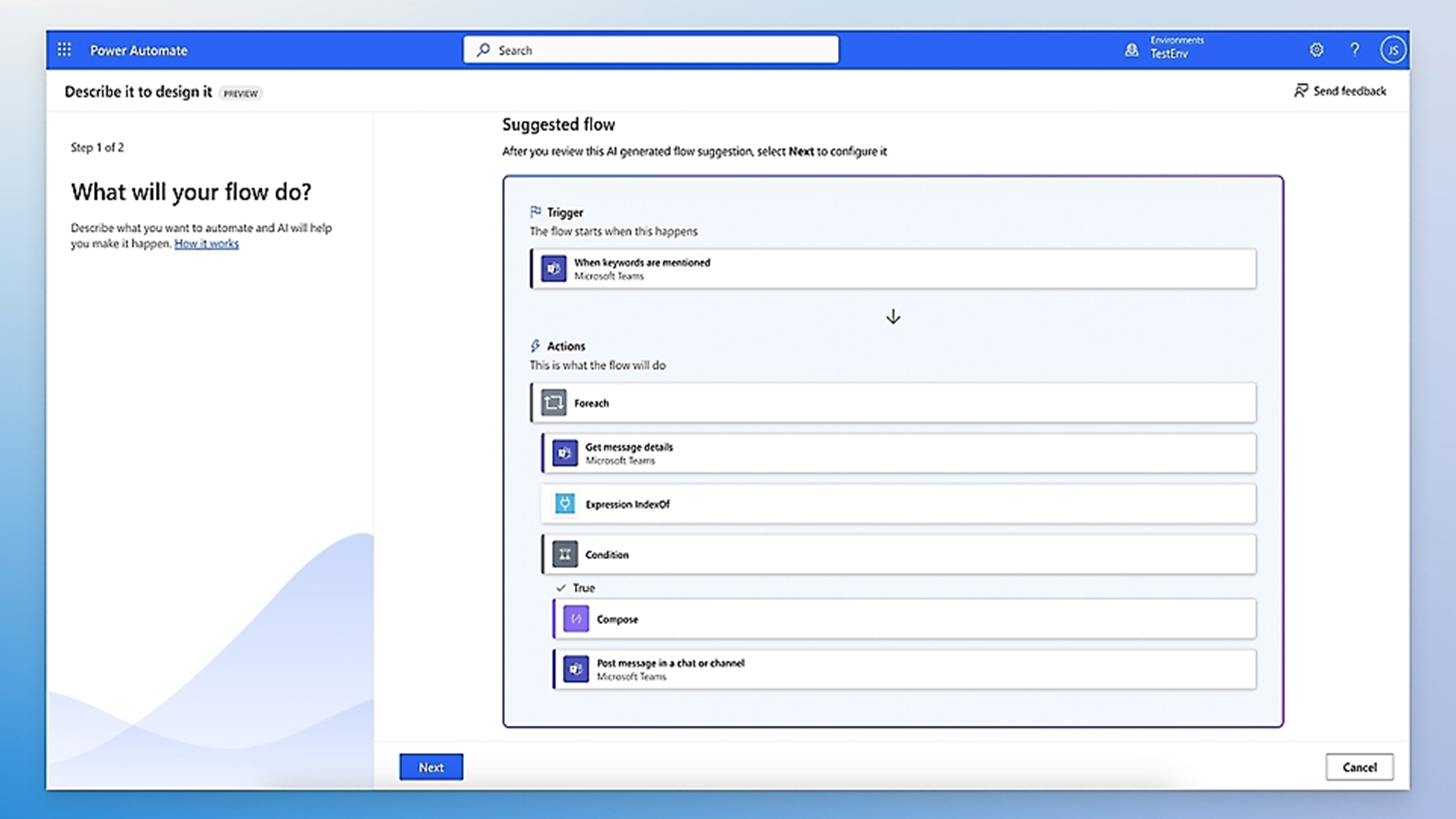
Power Automate interface showing the 'Describe it to design it' feature with Step 1 of 2 asking 'What will your flow do?' On the right, a suggested flow is displayed listing a trigger 'When keywords are mentioned' in Microsoft Teams, and actions: Foreach, Get message details in Microsoft Teams, Expression IndexOf, Condition with True branch executing Compose and Post message in a chat or channel in Microsoft Teams. Buttons for 'Next' and 'Cancel' are at the bottom.
Event-Triggered Automation

Flows can be triggered by specific events or a scheduled time, making automation reactive and timely.
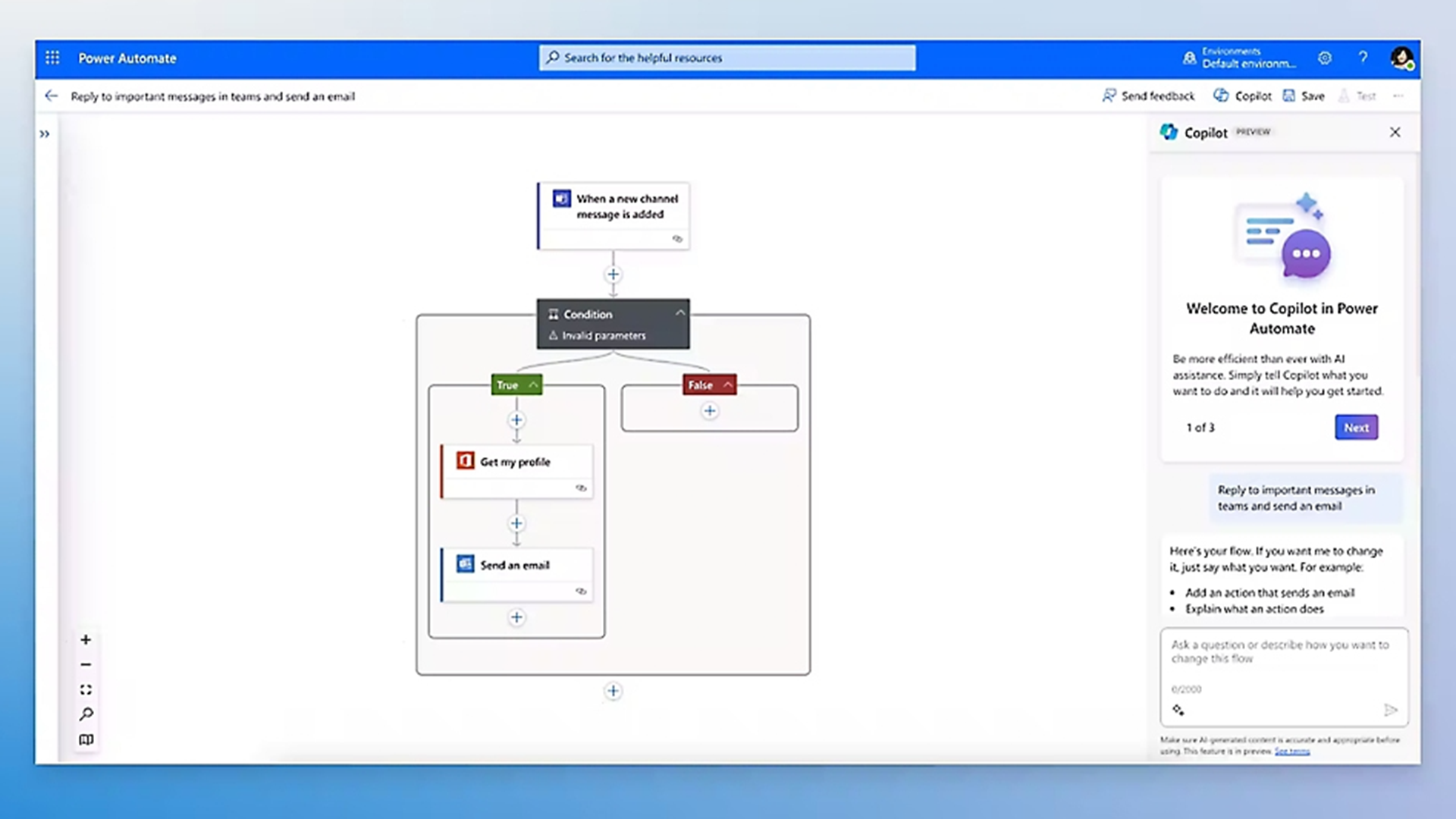
Screenshot of Microsoft Power Automate interface showing a workflow to reply to important messages in Teams and send an email, triggered by a new channel message. The workflow includes a condition with branches for true (getting the profile, then sending an email) and false. The right panel displays Copilot preview with a welcome message and instructions to customize the flow using AI assistance.
Copilot Flow Builder

Describe the workflow you need in plain language and Copilot will draft the automation flow for you.
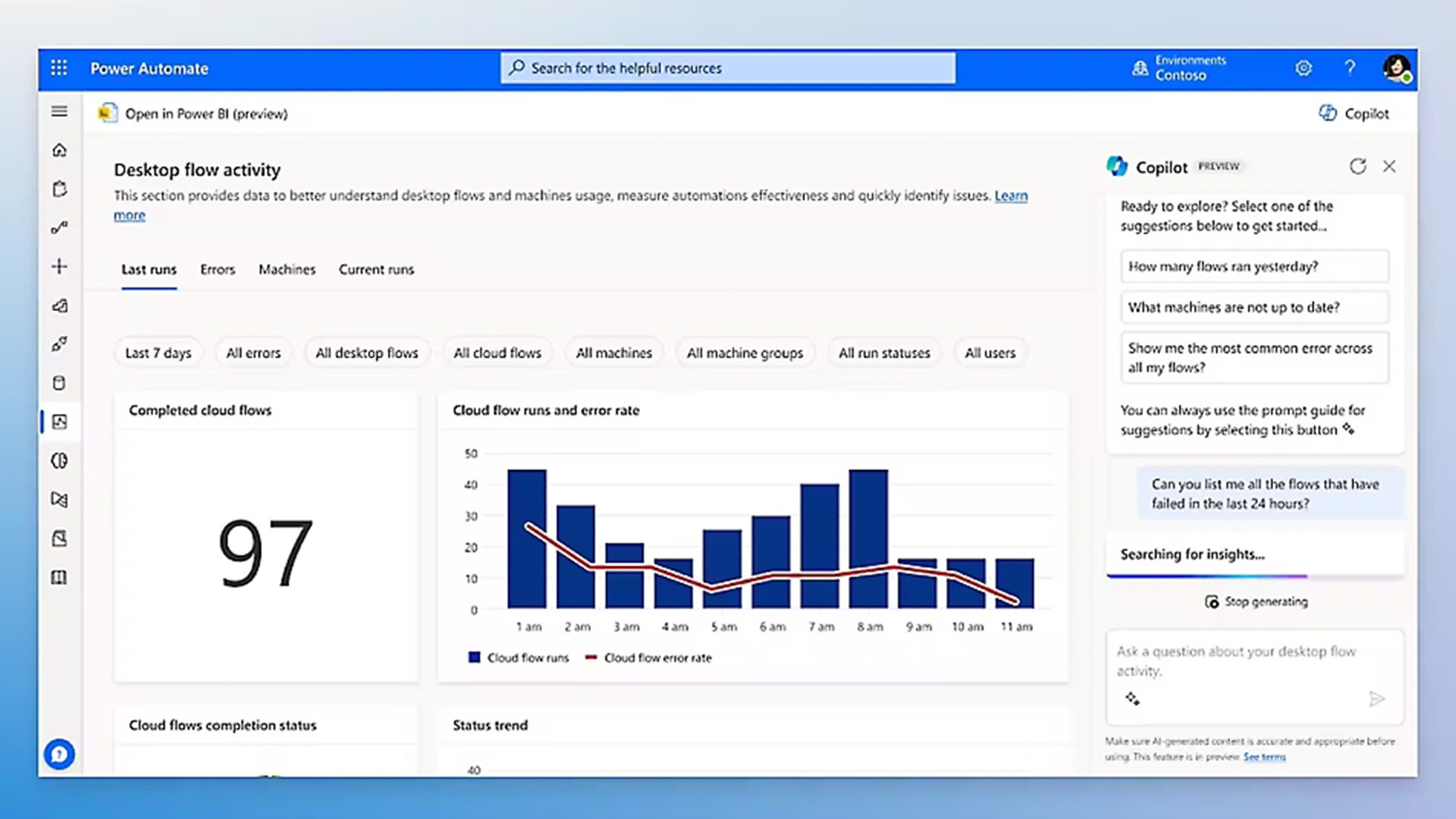
Power Automate desktop flow activity dashboard showing completed cloud flows at 97, a bar and line chart of cloud flow runs and error rate by hour from 1 am to 11 am, and an AI Copilot panel suggesting questions about flow runs, machine status, and errors with a prompt to ask about flows failed in the last 24 hours.
Governance & Control

Built with data loss, audit logging, and role-based access, so automation scales without compliance risk.

Frequently Asked Questions
What is Microsoft Power Automate?

Microsoft Power Automate is a cloud-based workflow automation platform that connects your business applications and services to automate repetitive tasks and multi-step processes. It supports both cloud-based automation between web services and desktop automation using Robotic Process Automation (RPA) for Windows applications, making it suitable for automating processes across virtually any system in your organization.

How is Power Automate different from custom integration development?

Custom integrations require software developers, significant upfront investment, and ongoing maintenance. Power Automate uses pre-built connectors and a visual workflow builder to create the same integrations in a fraction of the time and cost, without programming expertise. Flows are also easier to maintain and modify as business processes change, reducing long-term dependency on development resources.

What can Power Automate connect to in our existing technology environment?

Power Automate has pre-built connectors for Dynamics 365, Microsoft 365 (Outlook, Teams, SharePoint, Excel), SAP, Salesforce, and thousands of other third-party systems. For systems without native connectors, Power Automate supports HTTP/REST API integration and desktop flows using RPA, covering even legacy systems that lack modern APIs.

Can Power Automate work with our AI-OCR document processing?

Yes. Power Automate is the automation engine that drives Tectura's AI-OCR document recognition solution. It orchestrates the end-to-end workflow, from document capture through AI extraction, validation against ERP records, exception routing, and final posting. Combining Power Automate with Azure AI Document Intelligence gives organizations a complete, production-ready document automation solution.

How long does it take to implement Power Automate workflows?

Simple automation flows, such as approval notifications, data synchronization between two systems, or scheduled report distribution, can be built and deployed within 1 to 2 days. More complex multi-step workflows involving multiple systems, conditional logic, and exception handling typically take 1 to 2 weeks. Tectura will scope the right approach based on your specific process requirements.